
DevPreview 1.4 shows what's inside an archive
Press Space on a ZIP or tar.gz, and the Finder shows the contents list instead of an icon. No extraction, no password prompt. Plus a preview in the size you want.
The Space Bar on a ZIP
A customer sends you a ZIP with their accounting export. You just want to know if the invoices are inside as PDFs or CSVs and if the folder with receipts is included. Until now, that meant: extract, check, delete the extracted folder. Quick Look showed you nothing but an icon and file size for a ZIP.
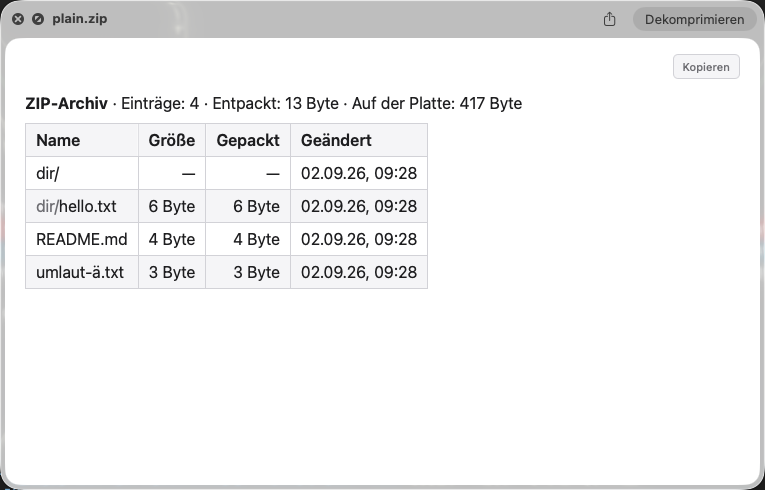
Since DevPreview 1.4, press the space bar to view the table of contents: each path, size, packed size for ZIPs, and modification date. The table is sorted by path, with folder names shown in muted color before the file name, so you can grasp the structure at a glance.
The "Decompress" button offered by Finder in the upper right remains unchanged.
Which archives does DevPreview show?
ZIP and JAR, tar as well as tar.gz, tar.bz2, and tar.xz, that is, tar with gzip, bzip2, or xz. A single .gz file shows the file it wraps, including original name and size. 7z and RAR are excluded: without external libraries, their headers cannot be read, and a library I do not wish to bring into the Store will not be included in the app. For these two formats, you will continue to see the familiar system map.
Encrypted ZIP archives are a special case. Their file names and sizes are in plain text within the archive; only the content is protected. DevPreview lists them like any other ZIP, attaches a lock icon to each protected entry, and never asks for a password. This is a deliberate boundary: the preview is meant to tell you what is inside, not to unlock the encryption.
Why an archive with five gigabytes is available immediately
A ZIP file carries its table of contents at the end of the file. DevPreview reads exactly this end and nothing else, so it does not decompress a single byte of the content. Therefore, an archive with five gigabytes takes the same time to process as one with five kilobytes.
tar archives do not have such a directory. The headers of the entries are scattered throughout the data stream, and for tar.gz, the stream must be decompressed first. DevPreview reads this with a budget: either 1.5 seconds or 256 megabytes of compressed input, whichever is reached first. The table does not show more than ten thousand entries anyway. Anyone who exceeds one of these limits receives the list up to that point and a notice that it is incomplete. A truncated or corrupted archive will also inform you of this, rather than pretending to show a list that looks complete.
The fact that Quick Look now hands off ZIP files to a different extension was not certain before. For HTML, macOS refuses to do so, as measured in August. For archives, it works, as measured on September 2, 2026, on macOS 26.6. Word, Excel, and Pages documents are technically ZIP files as well. However, macOS reports them as what they are, and their preview remains unaffected.
Preview at the size you want
The second innovation stems from an observation that you probably know: You drag the Quick Look window larger, press the space bar the next time, and it is small again. Quick Look does not remember this size for previews from extensions, and the extension never learns how large you dragged the window. It can only provide a desired size.
That is exactly what you can now set in DevPreview under "Display," with two sliders for width and height. The default is 1000 by 800 pixels. The upper limit is based on your smallest connected screen, so that the preview fits on any monitor and does not hang over the edge on the laptop display.
What arrives from version 1.3 only now
Version 1.3 never reached the Store. Apple had approved it, but I did not release it, and with 1.4, its new features finally come to you:
- Copy buttons in every preview. For Markdown and reStructuredText, there are two: one for the source text and one for the formatted text. Headings and bolding survive a paste into Mail.
- Every code block has its own small copy button.
- Images that a preview is not allowed to load appear as a tile with the filename and alt text instead of a broken frame. The reason is the sandbox: A Quick Look extension may read exactly the one file you clicked, and no others.
- Configuration files with the extensions .conf, .cfg, and .ini appear on every Mac, even without BBEdit or VS Code, which macOS previously needed as providers for the file type.
- The labels in the preview follow the system language: German, English, French, and Spanish.
Disabling is possible, and everything remains on your Mac
Like any format, the archive list can be disabled in the settings, then the Finder shows its system view again. And as before, everything stays on your Mac: the extension has no network access, and you still do not need an account.
DevPreview 1.4 runs from macOS 13 and is available in the Mac App Store. Those who already have it will get the update via the App Store. All formats and screenshots are on the product page.
Created by Martin Schmid, with support from Claude Fable 5.1 and approved after independent content review. Our notes and disclaimer apply.