
What I Use Every Day
DevPreview renders Markdown, reStructuredText, YAML, CSV, and logs directly in Finder. Almost every feature was created because it was missing in my own workflow.
The Double Button in docker-compose.yml
Preview on a docker-compose.yml, space bar, and there were two copy buttons stacked on top of each other. Both did the same thing. This wasn't noticed during a test run, but while working. I use DevPreview myself, every day, in exactly the projects for which the app was built.
The bug was fixed later that afternoon. This is how almost every change is made here.
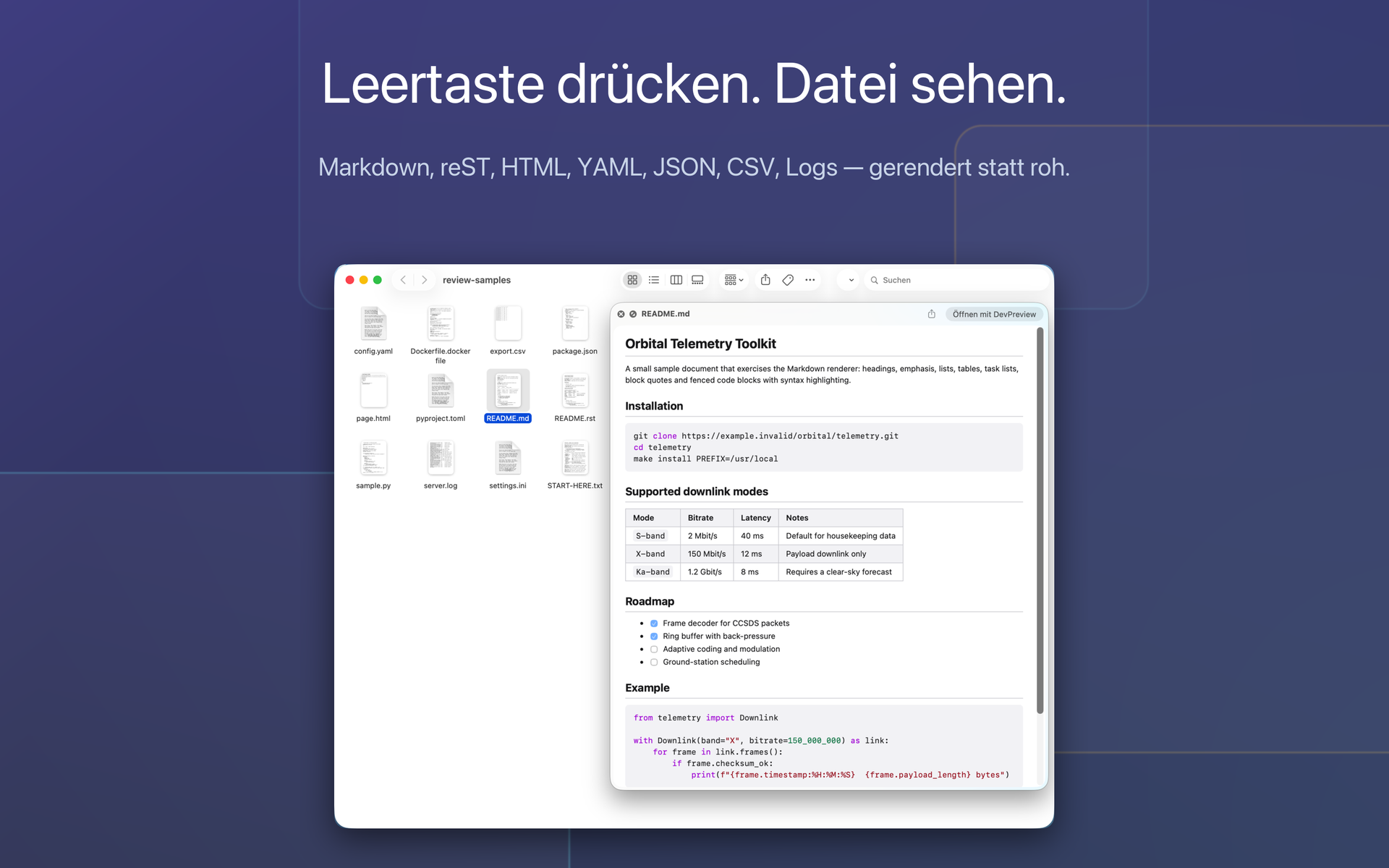
What the App Does in Finder
DevPreview is a Quick-Look extension for macOS. You press the spacebar in Finder, and instead of raw text with hashes and asterisks, a rendered document appears:
- Markdown with tables, task lists, and color-highlighted code
- reStructuredText, the format behind every Python documentation and every Odoo module README
- YAML, TOML, JSON with preserved structure and visible comments
- CSV and TSV as a real table with a header row, including semicolon-separated exports from German spreadsheet applications
- Log files with color-differentiated errors, warnings, and hints
- Source code in over 35 languages with syntax highlighting
You set the font size and appearance yourself. Each format can be turned off individually, then macOS's standard preview takes over again.
Why exactly reStructuredText and configuration files
Because these are the files that lie in my Finder daily. Those who maintain Odoo modules haveREADME.rst in every OCA repository,odoo.conf on every server anddocker-compose.yml in every project folder. For.conf, .cfg and.ini macOS knows no file type by default, which is why preview was silent there. So DevPreview now includes the type itself.
The same for your own preview window. Odoo delivers the sales page of a module asstatic/description/index.html off, deliberately without scaffolding and without styling. In the browser it appears as an unformatted text block, and macOS keeps HTML for its own preview anyway and does not query third-party extensions for that. The app's preview window applies the styling and opens the tabs. If you open the entire folder immediately, the images referenced by the page also appear.
Your files remain local
The Quick-Look extension has no network entitlement. No account, no login, no transfer of file contents, no analytics services.
There is one limitation, and it is also stated on the product page: If a preview references an image at a foreign address, such as a badge in a README, that image will be loaded. Otherwise, the preview will show a broken frame at that location. The file itself remains where it is.
Do I need to enable anything after installation?
Yes, once. macOS keeps preview extensions disabled until you enable them: System Settings, General, Login Items & Extensions, click the ⓘ next to DevPreview, then enable "Overview". The app includes a button that opens exactly this setting.
After that, the spacebar works.
Version 1.2 is available in the Store; 1.3 is coming soon
What version 1.3 brings comes again from personal use. Copy buttons in the preview, because a paragraph from a README often ends up in an email more often than in the editor, and headings and bold formatting survive the paste. Tiles instead of broken image frames, because a Quick-Look extension is only allowed to read the displayed file and simply cannot access an image next to it. Configuration files, see above. And the double button from the beginning.
DevPreview runs on macOS 13 and is available in the Mac App Store. All formats, screenshots, and the price are listed on the product page.
Created by Martin Schmid, with support from Claude Opus 5 and approved after independent content review. Our notes and disclaimer apply.