DevPreview: Read Developer Files with Space
Press Space to Read File
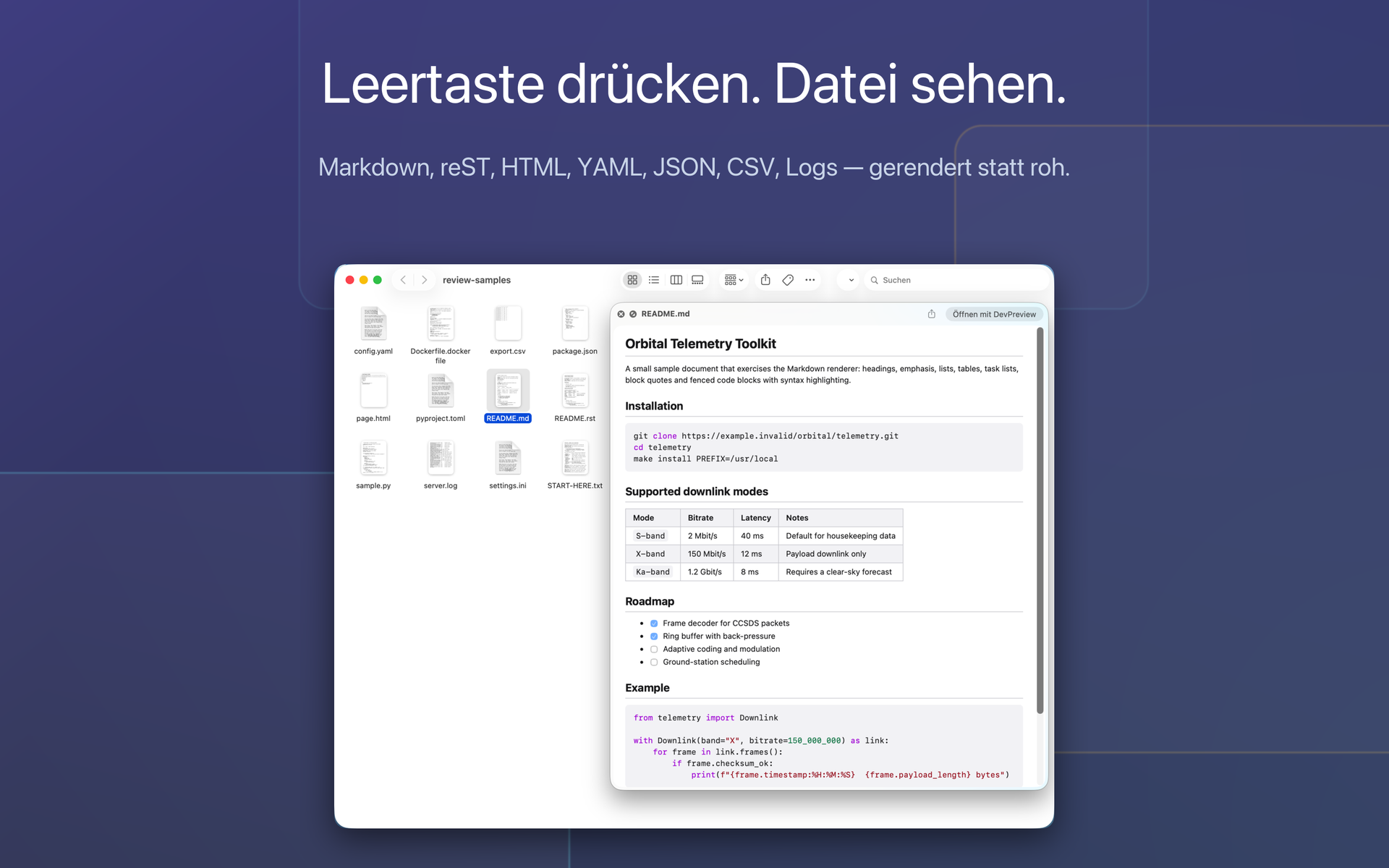
Select a README.md in Finder and press Space. Without DevPreview, you'll see raw text with all hash marks and asterisks — if you see anything at all. A .rst file isn't even recognized by macOS, a docker-compose.yml appears as a gray wasteland.
DevPreview picks up right where you left off. The extension renders the file as the preview opens: headings as headings, tables as tables, source code with syntax highlighting. You don't need to launch an editor to see what's in a file.
What DevPreview Shows
| Area | Formats |
|---|---|
| Documents | Markdown (GitHub variant with tables, task lists, strikethrough), reStructuredText |
| Configuration | YAML, TOML, JSON, .ini, .conf, .env, Dockerfile, Makefile |
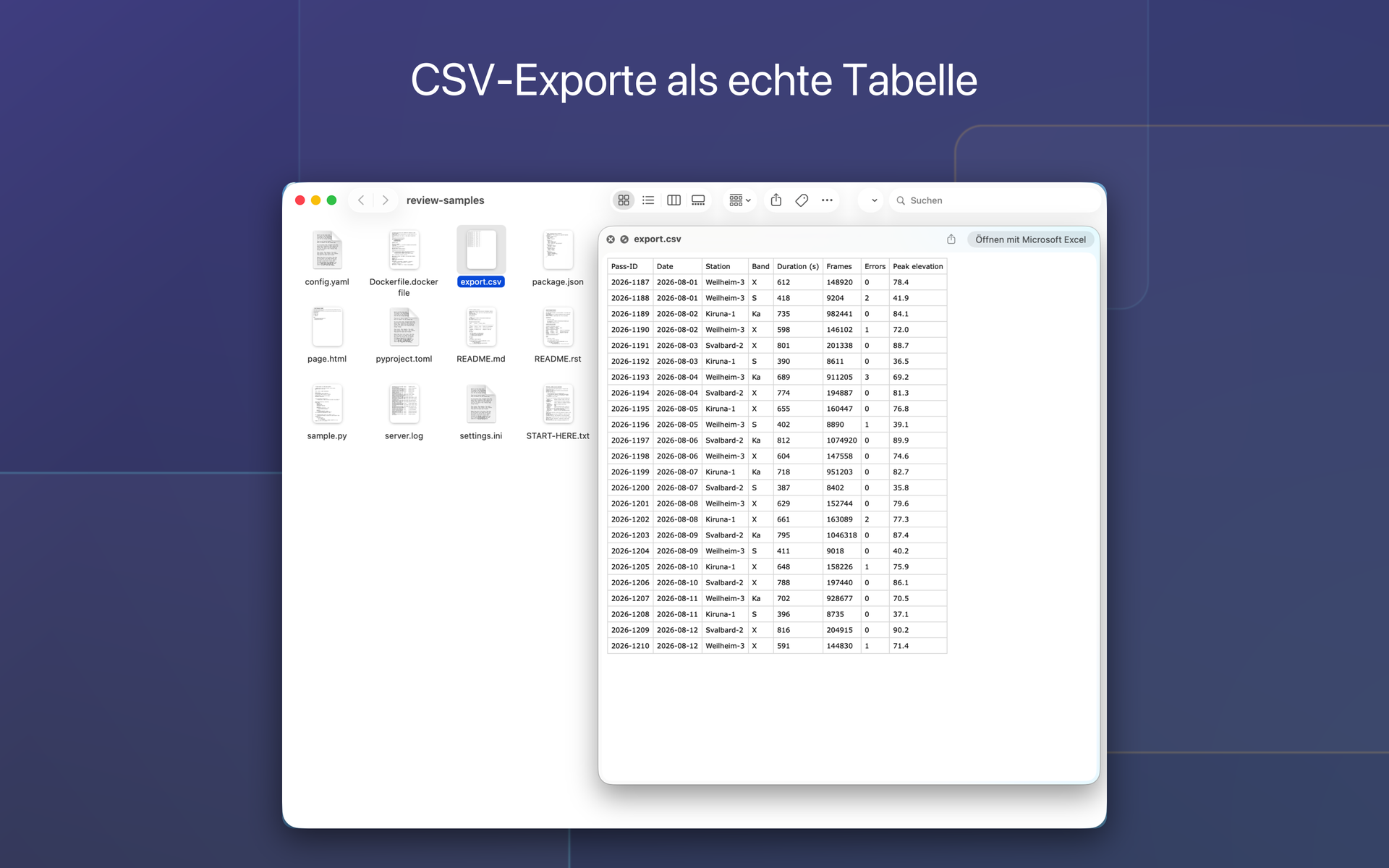
| Data | CSV and TSV as real tables, with automatic delimiter detection |
| Logs | Log files with color-coded levels (Error, Warning, Info) |
| Source Code | Over 35 languages with syntax highlighting |
A export.csv becomes a table instead of a comma-separated list. That's the difference between "some numbers" and "aha, line 340 is empty".
Two Ways, Same Display
In Finder. Select a file, press Space. That's the everyday way.
In the app window. DevPreview includes its own preview window (⌘O, or assign the file via "Open With"). It renders using the same processing but can do two things Quick Look can't: display HTML pages and render local images.
The reason is not convenience, but the architecture of macOS. Quick Look processes exactly one file through an extension — the one you've selected. The images beside it remain locked, even if they're in the same folder. An image inside a Markdown file therefore appears in the Finder preview as a placeholder with the filename. In the program window, it loads once you open the folder instead of just the file.
.html is again claimed by macOS: system-side, every HTML file goes to its own web preview; an extension is never asked. That's why there's this window.
Customize Appearance
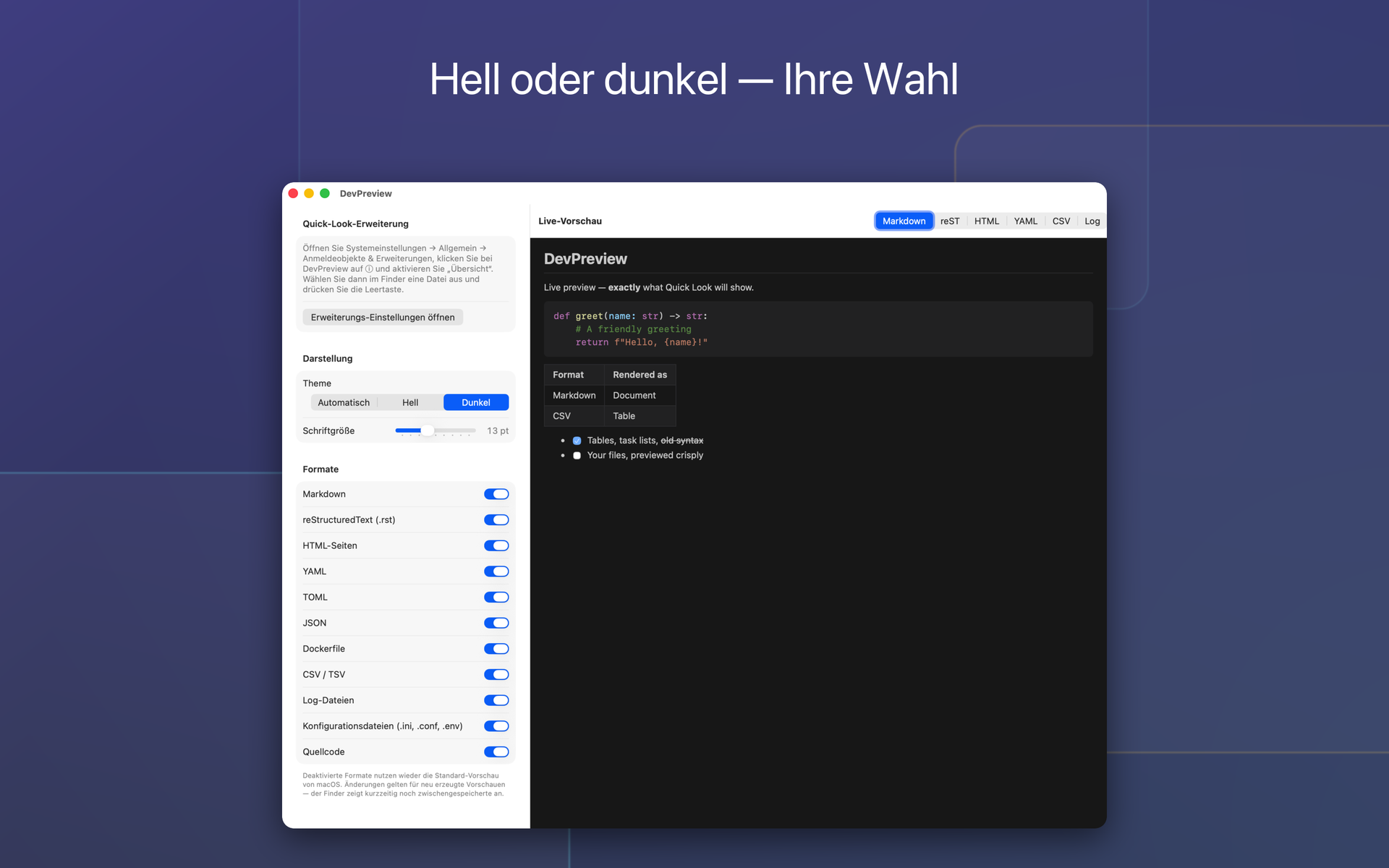
Light, dark, or automatic based on system settings. You can set the font size between 10 and 18 points. And if you prefer the standard preview for a specific format, you can disable that format individually — macOS will take over again.
What DevPreview Doesn't Do
The extension has no network permissions. It cannot send anything because the operating system technically prevents it, not because we promise to. There are no statistics, no accounts, no registration. The privacy notice in the App Store reads "No data collected," and that is the complete truth.
Large files are truncated: at 2 MB or 20,000 lines, it stops, with a visible notice. If rendering takes longer than three seconds, a simplified version appears instead of none at all.
Installation
DevPreview is available in the Mac App Store and runs on macOS 13 and later.
DevPreview – Quick Look in the Mac App Store
macOS keeps new Preview extensions disabled until you enable them. Open System Preferences ▸ General ▸ Login Items & Extensions, click the ⓘ next to DevPreview, and enable "Overview". Then the spacebar works in Finder. The app includes a button that opens this setting directly.
Versions
1.3 — Copy buttons in Preview: source code or formatted text, plus a dedicated button for each code block. Images that Preview cannot load appear as placeholder tiles with the filename instead of an empty frame. If Finder launches the app to display a file, the settings window remains closed.
1.2 — A dedicated preview pane in the app, with support for HTML pages and images embedded in files. The interface is also available in French and Spanish.
1.1 — reStructuredText, displayed as a document rather than source code. This is the format behind nearly all Python documentation and every Odoo module.
1.0 — First release with Markdown, YAML, TOML, JSON, CSV, logs, Dockerfile, and source code in over 35 languages.
Created by Martin Schmid, with support from Claude Opus 5 and released after independent content review. Our terms and disclaimer apply..